
 United States
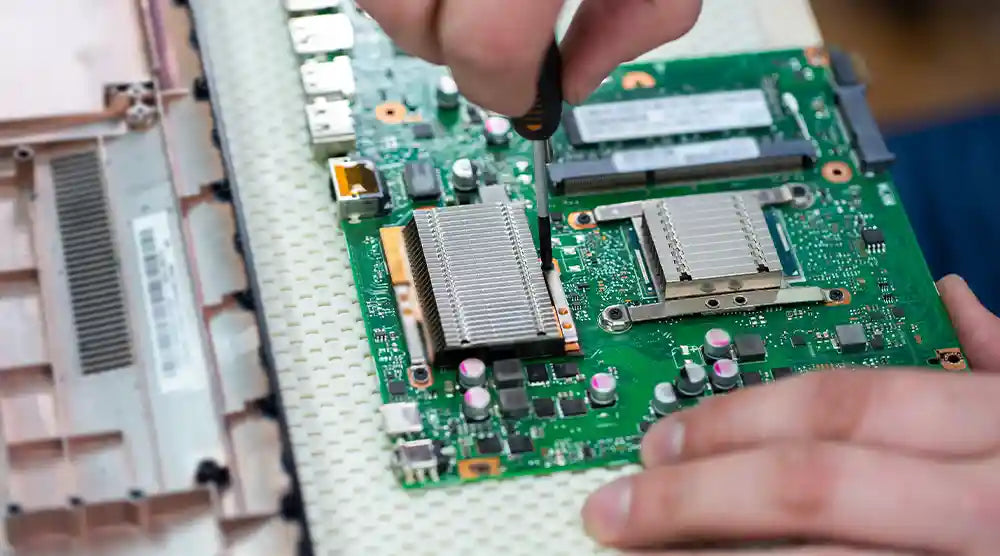
The motherboard is the backbone of your entire PC, connecting the CPU, GPU, RAM, storage, and every essential component that keeps your system running smoothly. Upgrading it at the right time can significantly improve performance, enhance system stability, and ensure compatibility with the latest hardware.
In this guide, you’ll learn exactly when to upgrade motherboard, the key signs you shouldn’t ignore, and how to choose the right one for your future needs.
Key Signs You Should Upgrade Your Motherboard
Though your motherboard looks good from the outside, underlying problems frequently become apparent progressively. These are the most typical indications that it's time to think about replacing:
1. Not Suitable For the Most Recent CPUs or RAM
Motherboards grow along with each new generation of processors. Automatically losing out on great performance increases if your system cannot handle modern CPUs or fast DDR45 RAM. For instance, you might desire to move to a 14th-gen or Ryzen 7000-series CPU, but your current board cannot accommodate them even after BIOS upgrades.
2. Few PCIe Slots and Aging Ports
Some signs of aged growth support are:
-
Having PCIe 2.0 or 3.0 slots only.
-
M.2 NVMe port absence.
-
There is no support for USB-C or reduced USB 3.x.
-
Absence of fast Ethernet or Wi-Fi 6/7.
These constraints limit your ability to use quicker GPUs, SSDs, and external devices.
3. Frequent Crashes, Instability, or Overheating
Symptoms of a defective motherboard include:
-
Unscheduled stoppages.
-
Sudden reboots.
-
USB ports automatically disjoin.
-
Memory slot problems.
-
Stuttering during strenuous tasks.
Usually, the motherboard is the cause when these problems persist even after cleaning, driver updating, or component replacement.
4. BIOS has Stopped Enabling Modern Components
Your system may totally reject more recent hardware if your BIOS stops receiving updates.
Problems include:
-
CPU not recognized.
-
RAM speeds topped at lower frequencies.
-
GPU bottlenecks affect performance.
Older BIOS editions also lack newer power-delivery improvements and security features.
5. CPU or GPU Bottlenecks
Your system is not at its best, but it may not be destroyed either.
Typical bottleneck symptoms include:
-
The GPU is never reaching total utilization.
-
CPU operates at 100%; GPU is idle.
-
Lower-than-expected reference scores.
-
Game performance declines for no apparent reason.
This usually points to the motherboard restricting data movement or being unable to handle newer components.
Performance Limitations and Bottlenecks
Even if your computer still works, an old motherboard can gradually reduce overall performance. Here’s how:
Delaying Booting Times
Older boards that lack NVMe SSD support depend on significantly slower SATA disks. Boot times might run from 10 seconds to almost a minute.
Lower FPS In Games
Though your GPU may be able to support more frame rates, an obsolete PCIe bus or sluggish CPU communication could result in bottlenecks, causing erratic FPS.
Multitasking Lag
Stutters can happen when restricted RAM support or fewer VRM power phases:
-
Streaming.
-
Editing video.
-
Executing computer virtual machines.
-
Starting several applications.
Upgrading releases the whole capacity of your CPU and GPU and removes these obstacles.
Upgrading for Future-Proofing
A modern motherboard helps you to get your system ready for tomorrow as well as today.
Future-Gen Hardware Compatibility
Newer boards help in:
-
Modern AMD and Intel processors.
-
DDR5 high-frequency remembrance.
-
PCIe 4.0 and PCIe 5.0 development.
-
Rapid Gen4/Gen5 NVMe SSDs.
These updates help to keep your construction pertinent for years.
Superior Features for Productivity and Gaming
Motherboard enhancements make a major impact if you want your PC to effortlessly handle upcoming AAA games smoothly. Higher-end graphics cards work best with quicker lanes, consistent power distribution, and modern thermal solutions.
Other future-proof elements include:
-
USB-C and Thunderbolt.
-
Bluetooth 5.3 and Wi-Fi 6/7.
-
Several M.2 connectors.
-
2.5 G or 10 G Ethernet.
-
Better VRM design.
These guarantee improved connectivity, faster speeds, and more stability.
Choosing the Right Motherboard for Your Needs
Your goals and components determine which board is best for you. Here is how to select the right one:
1. Options For Different Levels
-
Suitable for daily computing, light gaming, and office use are budget boards.
-
Ideal for creative designers and gamers are mid-range boards.
-
Perfect for overclockers, streamers, and businesspeople are high-end boards.
2. CPU, GPU, and RAM Compatibility
Before purchasing a motherboard, confirm:
-
Supported CPU socket.
-
Capacity and maximum RAM frequency.
-
PCIe 4.0/5.0 compatibility in the GPU slot.
-
M.2 SSD slots count.
This guarantees future upgrade paths and long-term stability.
3. Characteristics Grounded on Use Case
While others give raw performance more weight, some consumers value appearance.
-
Gaming: Many M.2 slots, PCIe 4.0/5.0, strong VRMs.
-
Productivity: High RAM capacity, multiple USB ports.
-
Streaming: Built-in Wi-Fi, dual BIOS, sophisticated cooling.
This is where picking the best motherboard becomes absolutely important.
4. Cooling and Expandability
Search for boards with:
-
Well-designed heatsinks.
-
Fan headers for improved cooling.
-
Room for more RAM.
-
Several expansion slots.
Strong thermal performance helps a motherboard to last longer and provide steady stability.
Wrap Up
Knowing when to upgrade motherboard is crucial for keeping your PC fast, stable, and fully compatible with modern hardware. Whether you're experiencing performance drops, outdated ports, BIOS limitations, or planning for next-gen CPUs and GPUs, upgrading your motherboard can dramatically enhance your system’s efficiency and lifespan.
Making the right choice today ensures smoother gaming, better multitasking, and long-term reliability.
For expert guidance on component selection or professional custom PC building services in Canada, visit Technoid Inc. today. We offer professional advice, high-quality components, and reliable support to help you upgrade with confidence.
People Also Ask
How can I tell if my motherboard is limiting my PC’s performance?
You may notice bottlenecks if your GPU isn’t reaching full utilization, your CPU runs at 100% while the GPU is idle, or RAM and storage speeds are capped. These are key signs that it's time to upgrade the motherboard.
Could upgrading other components improve motherboard performance?
Upgrading the CPU, GPU, RAM, or storage can improve system performance overall, but it cannot improve the motherboard's built-in capabilities. The only way to fully unlock performance is to replace your motherboard if it does not support contemporary components.
How often should gamers replace their motherboards?
Gamers typically upgrade every four to six years, depending on CPU and GPU releases. Knowing when to upgrade your motherboard helps keep your system stable, fast, and ready for new games.
Will adding more RAM require a motherboard upgrade?
Yes, if your motherboard has limited RAM slots or supports only older memory speeds. A new motherboard ensures compatibility with higher-capacity and faster RAM.
What features should I look for in a new motherboard?
VRM quality, expansion slots, M.2 SSD slots, PCIe support, contemporary connectivity (USB-C, Thunderbolt, Wi-Fi 6/7), and cooling options should all be taken into consideration. These features determine your system's longevity, stability, and performance.