
 United States
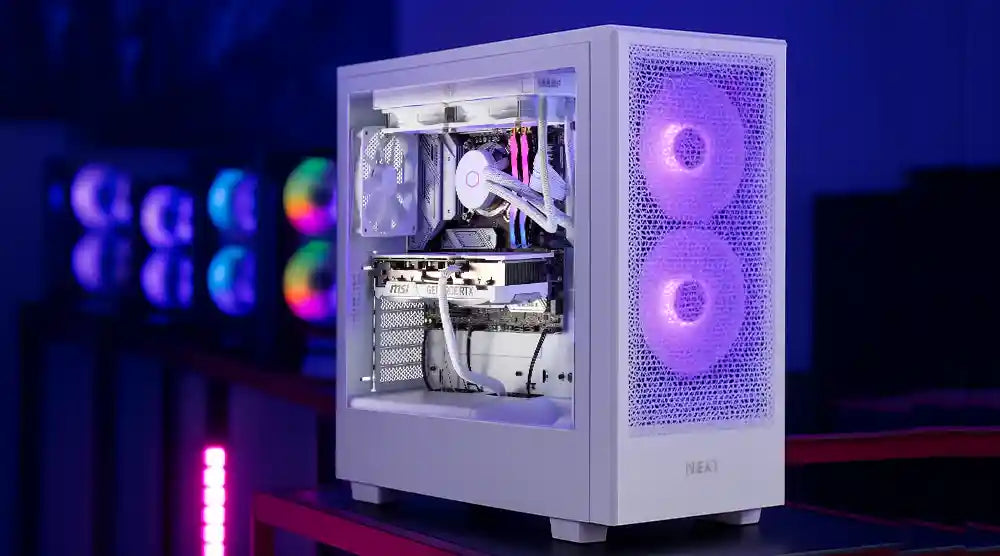
Every gamer dreams of smooth gameplay, sky-high FPS, and minimal lag, especially during intense action or competitive matches. The good news? You don’t need a brand-new rig to get there.
Smart gaming PC upgrades can unlock hidden performance, eliminate bottlenecks, and enhance both gaming and streaming experiences. From upgrading your GPU, CPU, and RAM to improving cooling and networking, the right enhancements let you play at your best without breaking the bank.
In this blog, we’ll explore the top gaming PC upgrades for 2026 that maximize FPS, reduce lag, and deliver the smooth, immersive gameplay every gamer craves.
Update Your GPU: The Center Of Gaming Performance
Frame rate, visual quality, and frame-time stability are all driven by your graphics card. A better GPU increases FPS and stabilizes 1%/0.1% lows, ensuring firefights run smoothly without hitches.
Top GPU Options
-
NVIDIA GeForce RTX 50 Series: Excellent for path tracing, DLSS Frame Generation, and latency-reduction tools like Reflex.
-
AMD Radeon RX 9000 Series: Strong raster performance, great VRAM capacity, and FSR frame generation.
Pro advice: Match your GPU to the refresh rate of your monitor. 1080p/144Hz does not demand the same level of horsepower as 4K/144Hz. To prevent underperformance or overpaying, combine resolution with power.
Boost Your CPU for Smoother Multitasking and Game Physics
Modern game engines depend a lot on the CPU to manage things like AI behavior, physics simulations, world streaming, and even background tasks such as browser tabs, voice chat, and recording software. When your CPU gets overloaded, it can hold back your GPU from performing at its best, leading to frustrating FPS drops and stutters.
Top CPU Options
-
AMD Ryzen 9 9950X3D offers great gaming speed and big cache capacities.
-
Intel Core Ultra 9 285K features strong multi-threading and high clock speeds.
Things to Consider
-
For an optimal gaming experience, especially if you're into high-refresh rates while streaming or recording, aim for a setup with 8 to 16 cores.
-
Try to keep those background apps to a minimum, and if you notice your CPU spiking during streams, consider capping the capture bitrates.
Add or Upgrade to DDR5 RAM for Faster Data Processing
Stutters result from either an inadequate or sluggish memory when assets are loaded, or from Chrome aggressively consuming memory during a game.
-
If you stream, mod, or multitask, 32GB is perfect while 16GB is the baseline.
-
DDR5 with dual-channel increases bandwidth. Seek consistent timings and XMP/EXPO-ready kits.
Result: Faster RAM reduces load stuttering, improves FPS, and allows CPUs to feed data to the GPU effectively.
Upgrade to an NVMe SSD for Lightning-Fast Load Times
-
Upgrading from a SATA SSD to an NVMe SSD may significantly decrease game load times and lower stuttering during gameplay.
-
Large, open-world games can stream assets more smoothly thanks to NVMe drives' faster read/write speeds.
Expert Tip: Use a dedicated NVMe SSD for game installations and keep at least 20% free space to maintain peak performance and longevity.
Upgrade Your Cooling System For Steady FPS
The quiet FPS killer is heat. Thermal throttling pulls down clocks when your CPU or GPU overheats; your smooth 165 FPS suddenly drops to 90.
When it comes to cooling, quality tower air coolers can hold their own against many AIOs, and they have the advantage of fewer moving parts. For those high-TDP CPUs or tight spaces, AIO liquid coolers in the 240–360mm range are usually the top pick.
Cooling Tips
-
Intake from the bottom/front, exhaust out back/top.
-
Maintain positive pressure to reduce dust buildup.
Result: Cooler components lead to steadier performance, higher average FPS, and better minimums, giving you smooth gameplay even during intense action.
Get a High-Efficiency Power Supply (PSU) for Stability
A flaky power supply unit causes random shutdowns, coil whine, and shaky clocks, exactly what you don’t want during a critical mid-ranked match.
-
Use a modular, 80+ Gold or Platinum PSU with 30–40% wattage overhead above your peak load.
-
Ensure it has native GPU cables (e.g., 12VHPWR) and enough PCIe connectors for future upgrades.
Result: Stable, clean power keeps your components healthy and prevents random stutters or unexpected shutdowns.
Better PC Case Design for Improved Airflow
A well-designed PC case makes a difference in cooling and overall performance. For instance, mesh-front cases help keep your CPU and GPU cooler at lower fan speeds than glass panels do.
Airflow Tips
-
Keep cables tidy to maximize front intake efficiency and maintain positive pressure.
-
Recommended setup: two front intakes, one rear exhaust, and optionally a top exhaust for hotter systems.
Result: Cooler components, quieter fans, and more consistent performance during gaming.
Upgrade Your Monitor To Match Your Hardware Capability
Even the strongest GPU out there can’t truly shine on a 60Hz display. One of the most significant upgrades you can make is to invest in a better monitor.
-
Refresh rates: Move to 144Hz or 240Hz for smoother, more responsive gameplay.
-
Adaptive sync: Use G-SYNC or FreeSync to reduce tearing and micro-stutters.
-
Resolution: 4K for cinematic experiences with high-end GPUs, 1440p for balanced performance, and 1080p for fast-paced esports.
-
Low response time: Faster monitors help improve aim and reaction times in competitive games.
Result: A monitor upgrade ensures your GPU and CPU deliver their full potential, giving you smoother visuals and better gameplay performance.
Optimize Networking Hardware for Lower Ping
The performance of gaming online is not limited to just FPS; it encompasses ping, jitter, and packet loss as well.
-
Ethernet first: A wired connection should always be the choice when stability is the most important factor.
-
Next-gen Wi-Fi: If wireless connectivity is your only option, make sure you get a super-fast Wi-Fi 7 router/client, which has wide channels and low latency.
-
Router QoS: Even if your roommate is streaming a 4K movie, you can still enjoy a lag-free game by giving priority to gaming traffic.
Tip: Use netgraphs to check your route in-game. Continuous spikes may be due to your ISP or modem; consider getting a high-quality DOCSIS/ONT or gaming-oriented router like the latest Wi-Fi 7 models. For standard details, check out the Wi-Fi Alliance.
Keep Drivers and BIOS Updated for Optimal Efficiency
The situation with disabled drivers is that they produce gaps, shader compilation hitches, and complete stops.
-
GPU Drivers: Always use vendor tools (for example, NVIDIA GeForce Experience or AMD Adrenalin) to get the latest game-ready drivers.
-
Chipset and BIOS: The enhancement of CPU microcode and memory training can lead to an increase in stability and memory speeds.
-
Windows and Game Patches: Numerous games address issues regarding shader cache and CPU thread scheduling after the release, so stay up-to-date to ensure optimal performance.
How to Prioritize Gaming PC Upgrades (Without Overspending)
1. Find out the Weakest Component
-
Is your GPU fully utilized? Reducing graphics settings hardly affects FPS → it's time to upgrade your GPU first.
-
Is your CPU fully utilized while your GPU is relaxed? → upgrade CPU/RAM.
-
Temps high, clocks dipping → upgrade cooling/case.
2. Align the Upgrade with your Needs
1080p/240Hz esports vs 1440p/144Hz AAA vs 4K/120Hz cinematic.
3. Plan Wisely
GPU + PSU together or CPU + cooler + DDR5 kit for platform refresh.
4. Don’t Overlook the ‘feel’ Upgrades
Upgrading your monitor and boosting your network can really take your gaming and streaming to the next level, often making a bigger difference than just focusing on raw hardware power.
Wrap Up
Upgrading your gaming PC doesn’t have to mean buying a brand-new rig. By prioritizing the appropriate components such as GPU, CPU, RAM, storage, cooling, and more, you can increase FPS, lower lag, and feel a smoother, more immersive gaming experience.
Remember to balance hardware improvements with “feel” upgrades like a high-refresh monitor and low-latency networking for the best overall experience.
Ready to take your gaming setup to the next level? Explore Technoid Inc. Blog today for more expert guides, custom PC building tips, and professional advice to optimize your PC performance and dominate your favorite games.
FAQs
1. What is the most powerful upgrade to enhance FPS the most?
Typically, the graphics card. Upgrading the graphics card and pairing it with a high-quality power supply will yield the most significant increase in FPS.
2. The load times will be the only thing affected by the SSDs, or will they also affect gaming FPS?
SSDs do not significantly increase average FPS; however, they reduce load times and can even stream assets more smoothly.
3. How often should I consider changing my gaming PC hardware?
When it comes to upgrading major components like your CPU, motherboard, or RAM, it's a good idea to aim for every 3 to 4 years, especially if you're looking to enjoy higher resolutions or refresh rates. For just a GPU upgrade, you might want to think about doing that every 2 to 3 years.
4. Is proper cooling essential for overclocking?
Absolutely! Keeping things cool is essential when you're overclocking. When you push your CPU or GPU beyond their standard speeds, they start to produce extra heat. If you don't have enough cooling in place, you'll run into thermal throttling.
5. What monitor specifications are the most important for playing competitively?
The main specifications are refresh rate (144-240Hz), response time, and adaptive sync. They all help in making the experience faster and more straightforward by eliminating blur, tearing, and input lag.